
The workbench your users get
This is a guide, not the contract. What the platform guarantees is specified under
openspec/specs/. For this page:commands·content-tabs·panes·workspaces·shell-layout·menus·plugin-store·plugin-permissions·surface-retention·popout-windows. Where this page and a specification disagree, the specification is right, and that is a defect in this page: change the behaviour there, then explain it here.
A product built on LoomWeaver ships with a workbench its users can already operate. Panes and tabs, two searches, workspaces, a settings dialog, a plugin store with its consent step, context menus, and the prompts around unsaved work are all there before the product’s first plugin is written. This page shows them, one picture each, as they look in the live demo (opens in a new tab). Every section ends with the page that says how to declare, curate or switch off what it shows.
Panes and tabs
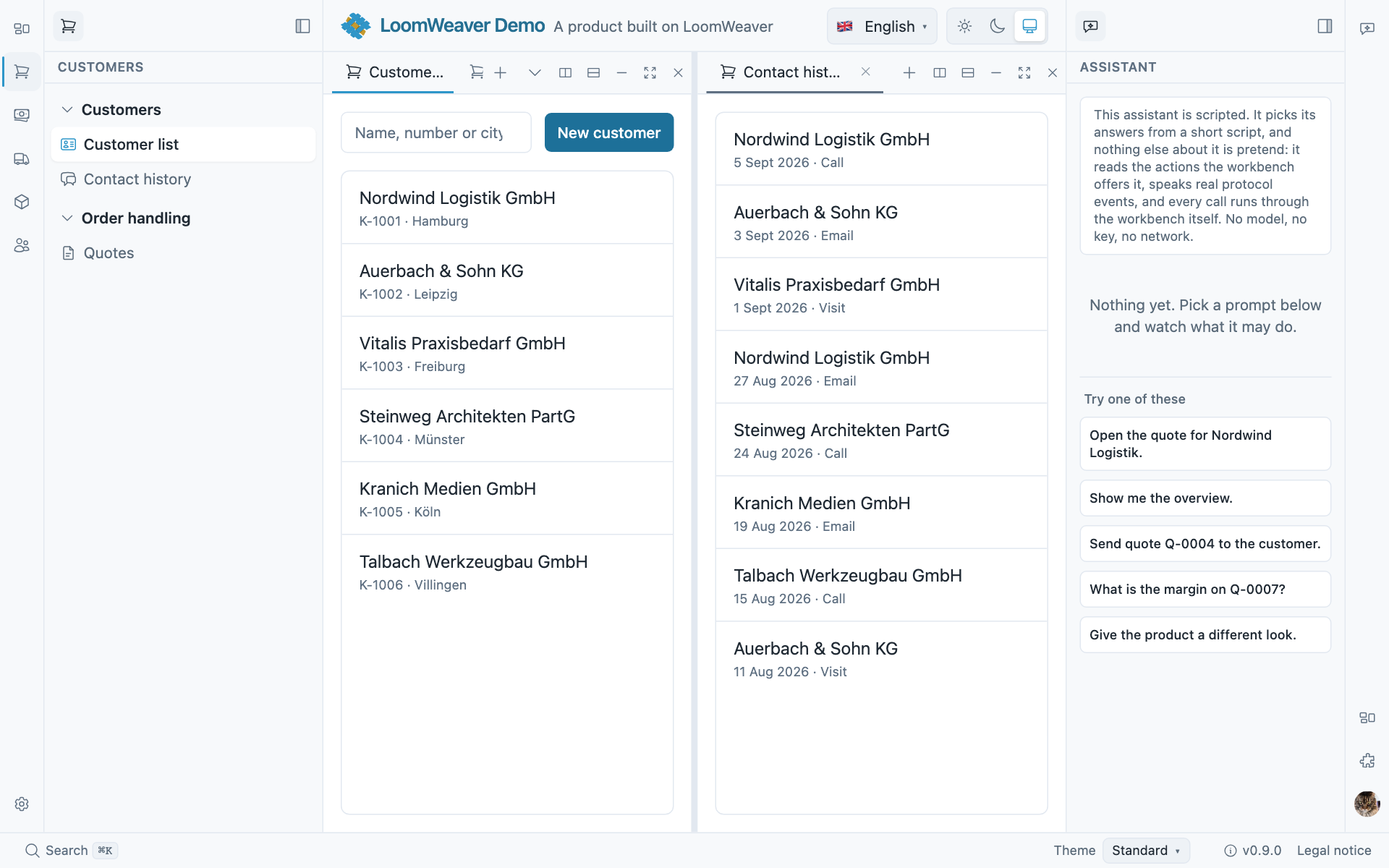
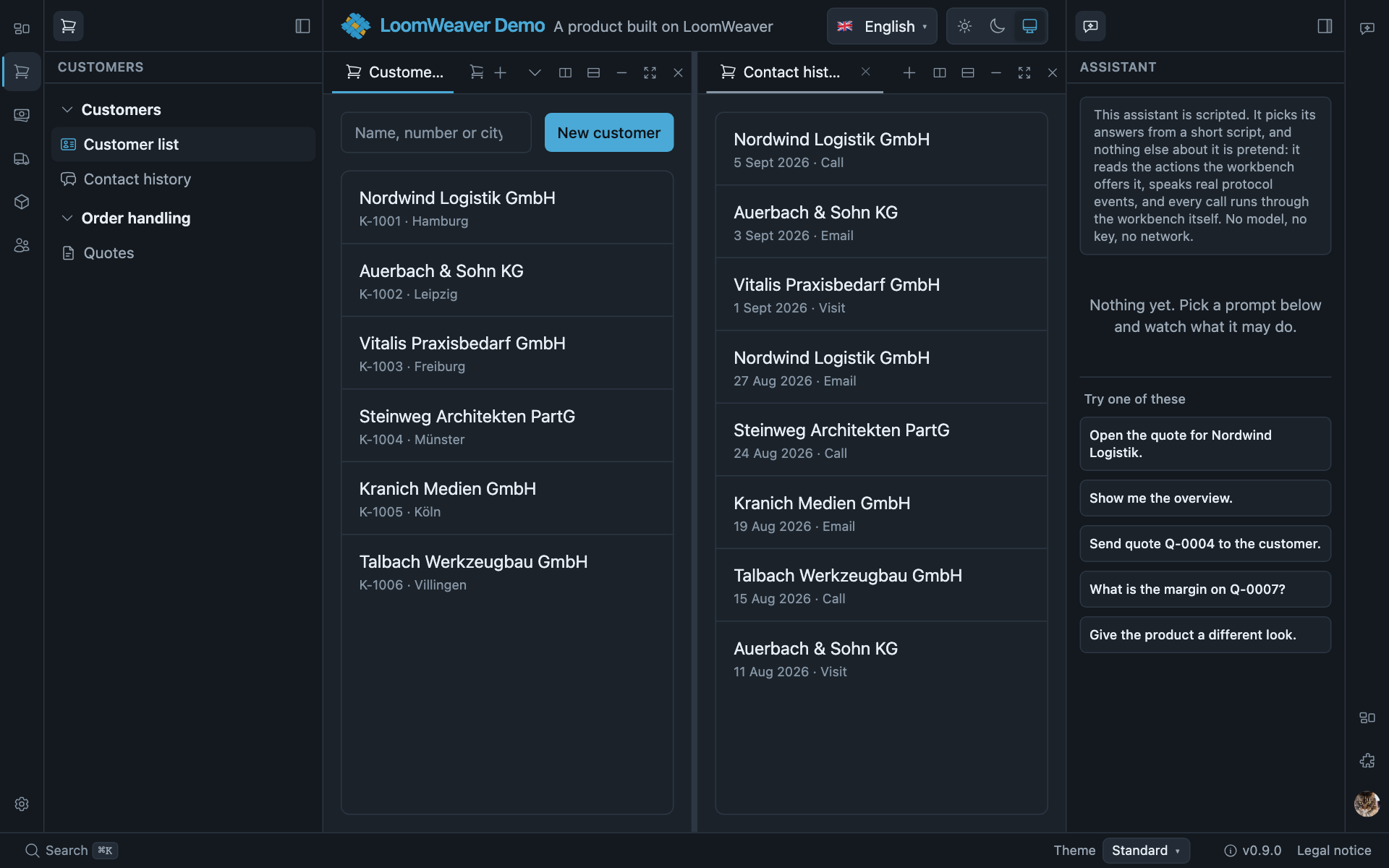
Two panes from one click on Split right, or from dragging a tab to an edge. Each pane is a tab group with its own strip, and the window stays as wide as it was. Tabs can be pinned, opened as a preview, reordered, and popped out into a window of their own. The controls in each toolbar are the shell’s, and a distribution takes any of them away with a switch rather than a rebuild.
Where it is described: Surfaces and panes, Panes and splits, Content tabs and the pane toolbar.
The command palette
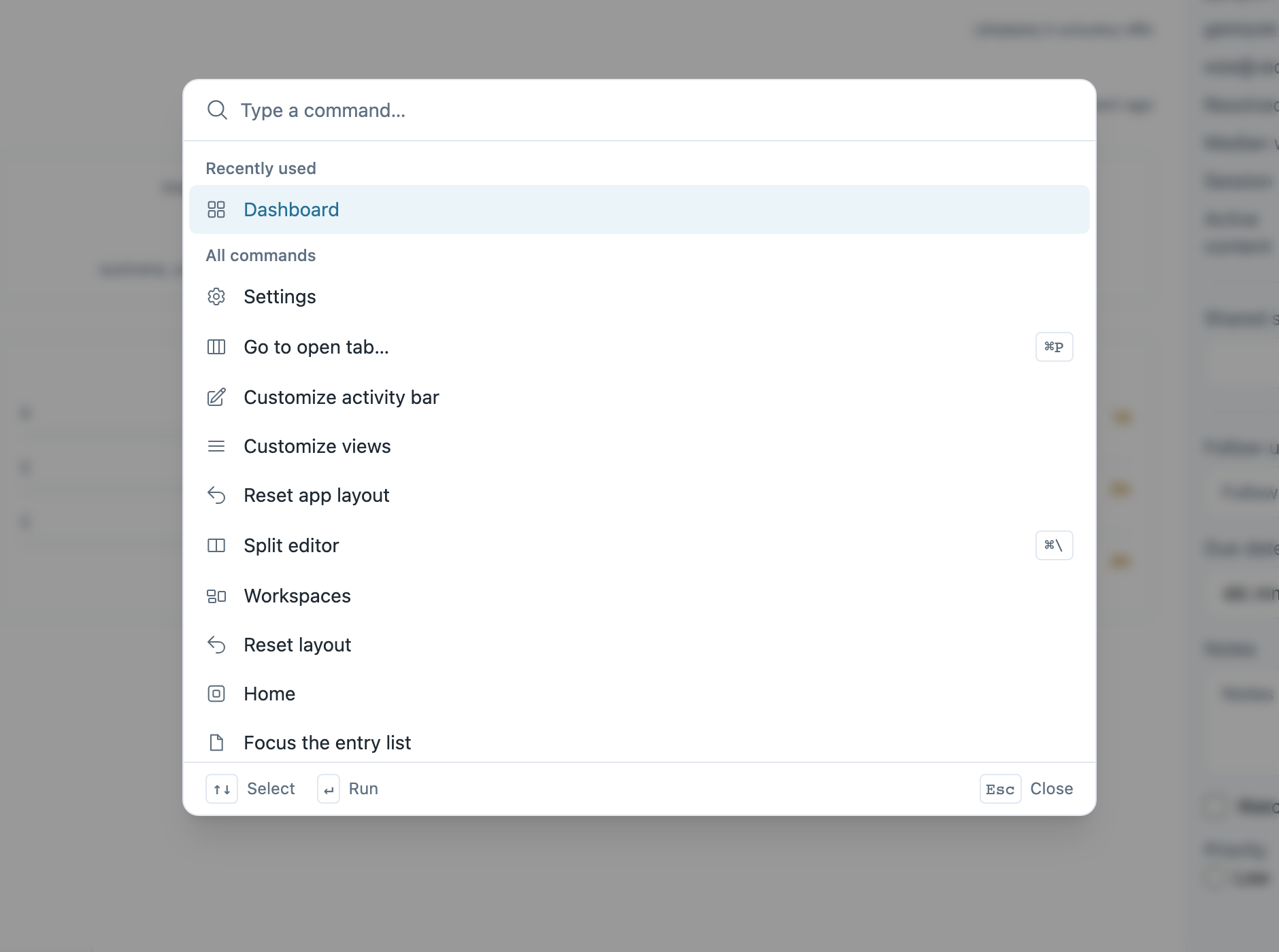
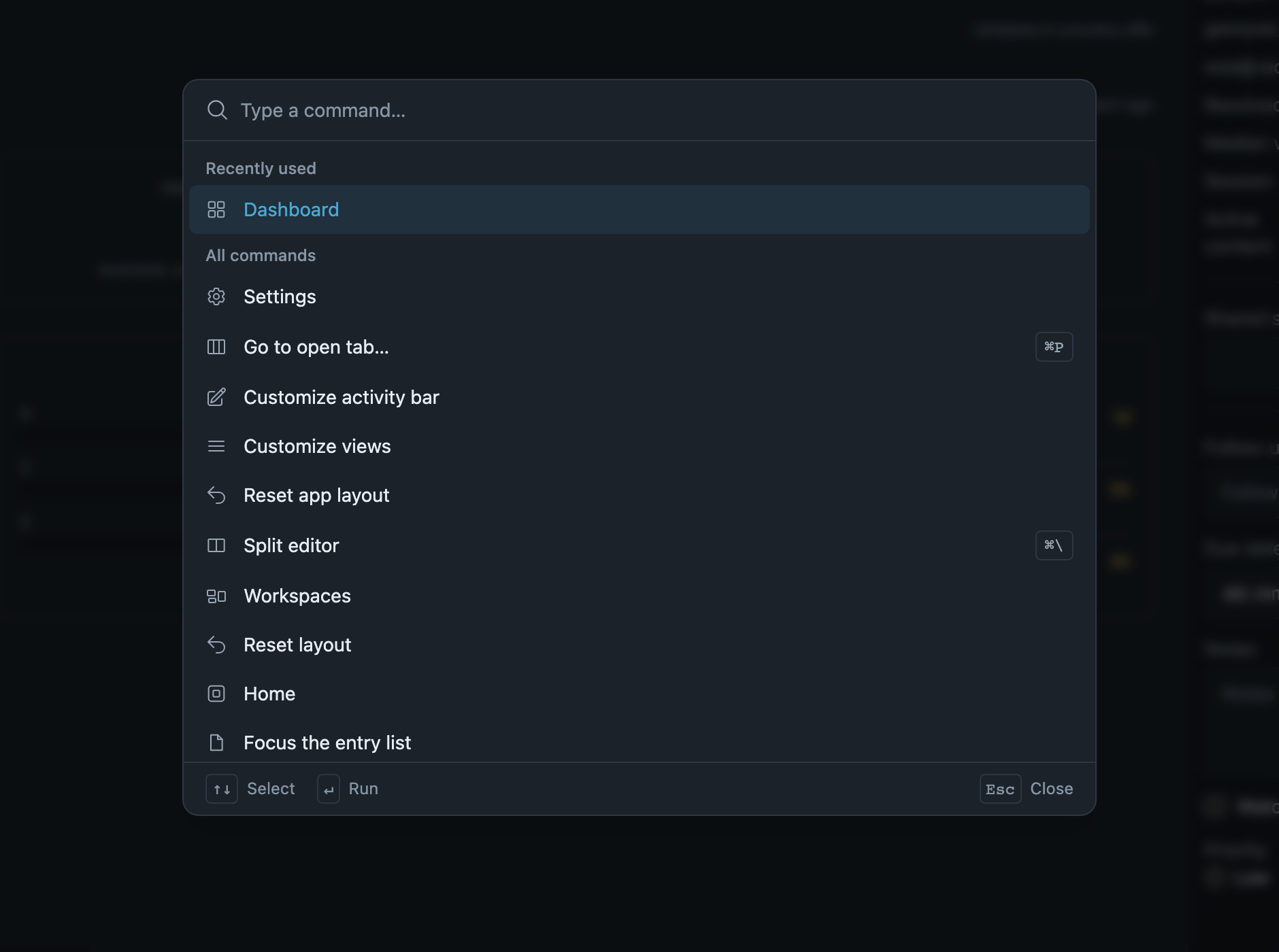
mod+k opens it anywhere. It lists every command a plugin or the product registered, with the
chord each one has, and keeps the recently used ones on top. A command declared once is in the
palette without further work, and the palette hides what the signed-in user may not run.
Where it is described: Commands and their triggers, Command palette entry.
Quick open, and the tab picker
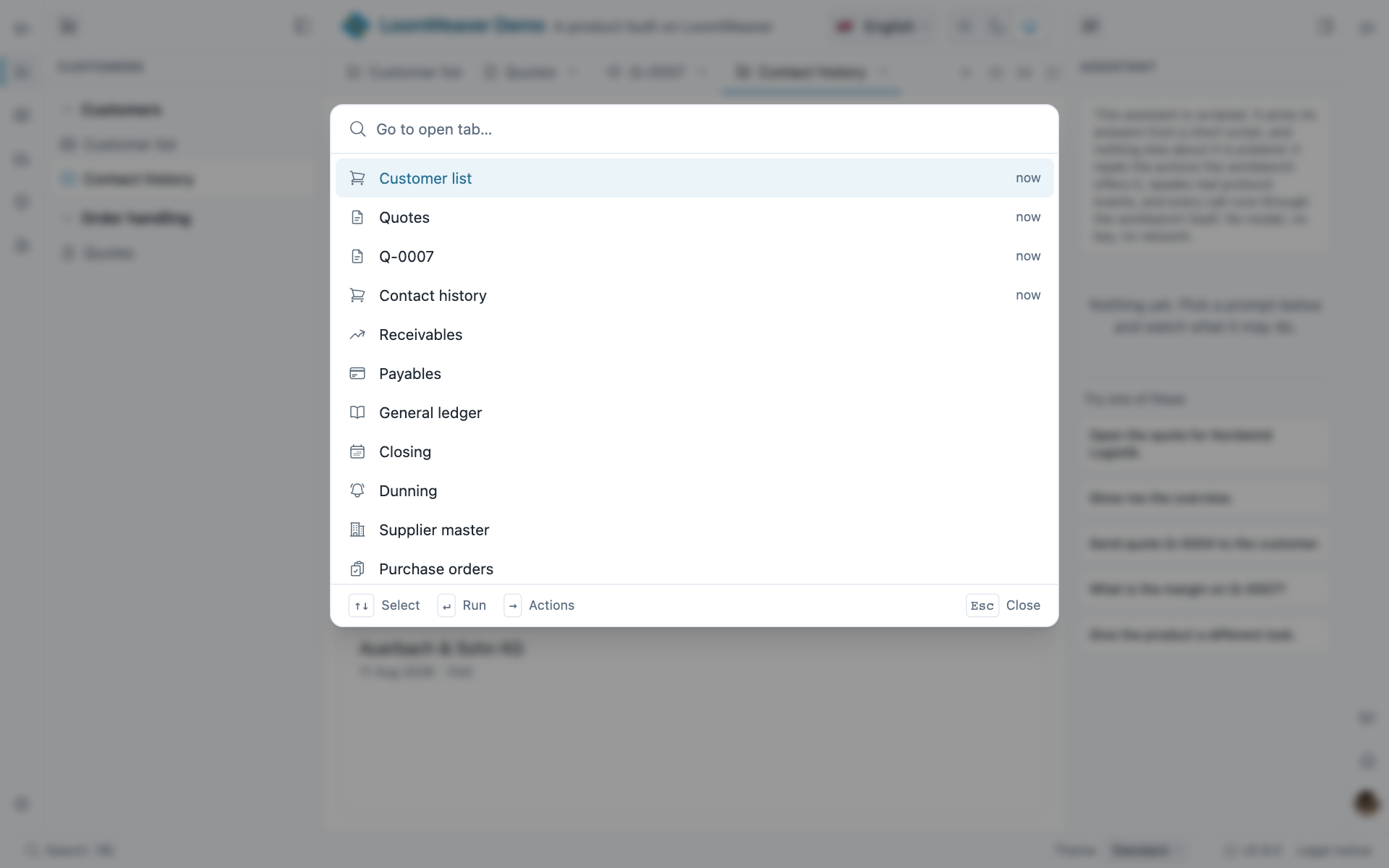
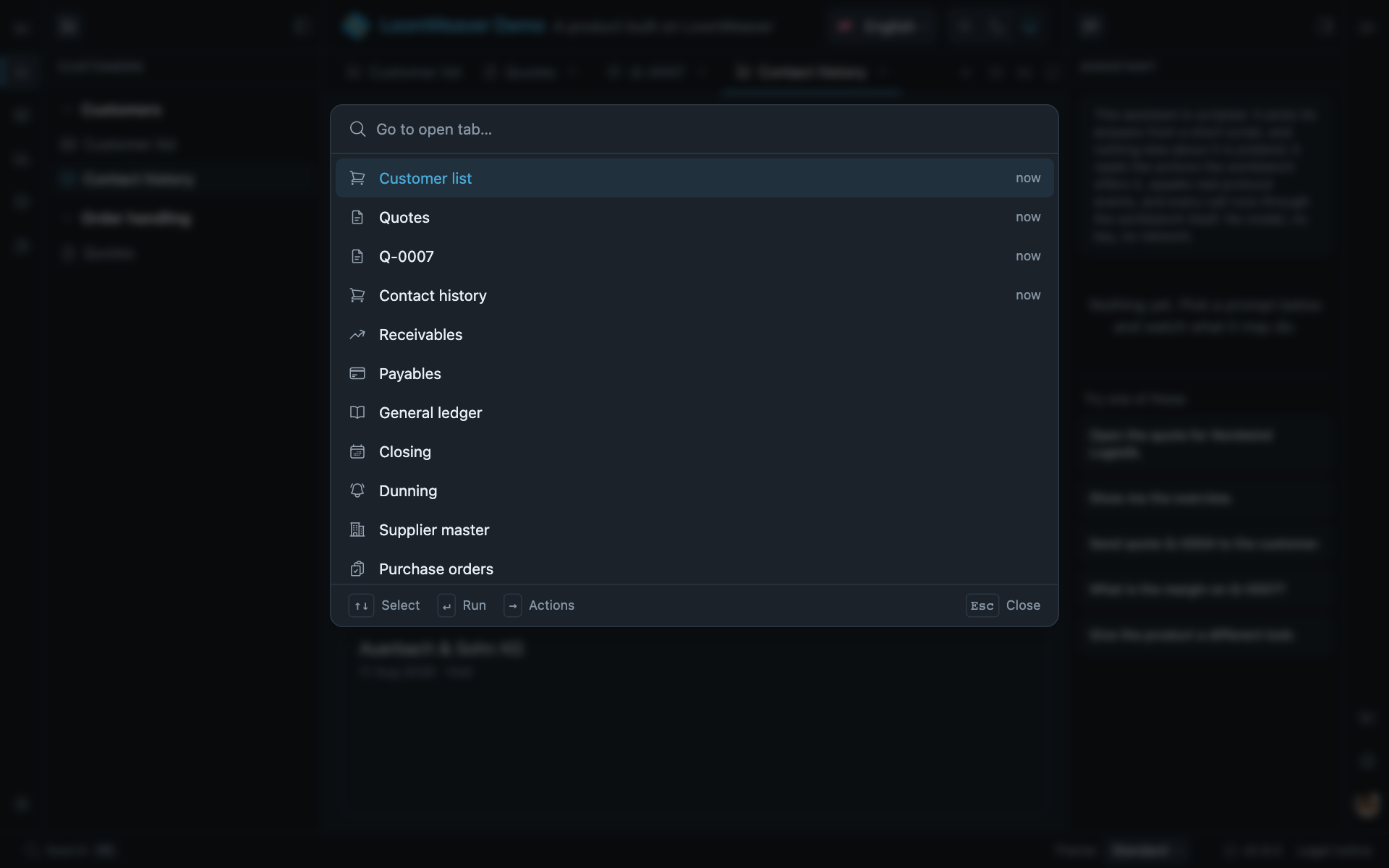
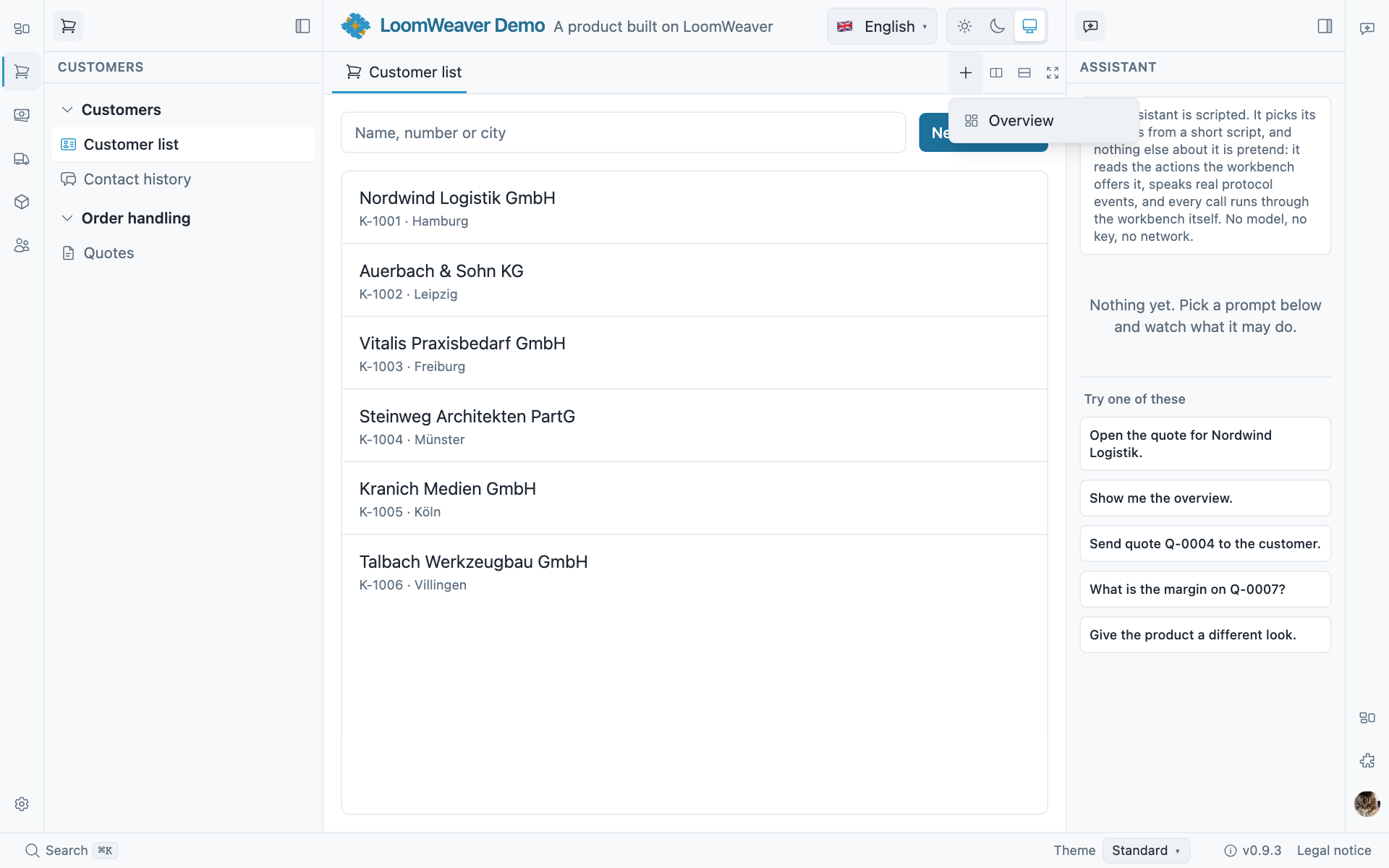
mod+p opens the second search. What is open comes first, marked now; below it, everything the
product could open, so a view that is not open yet is one keystroke away. The tab picker is its
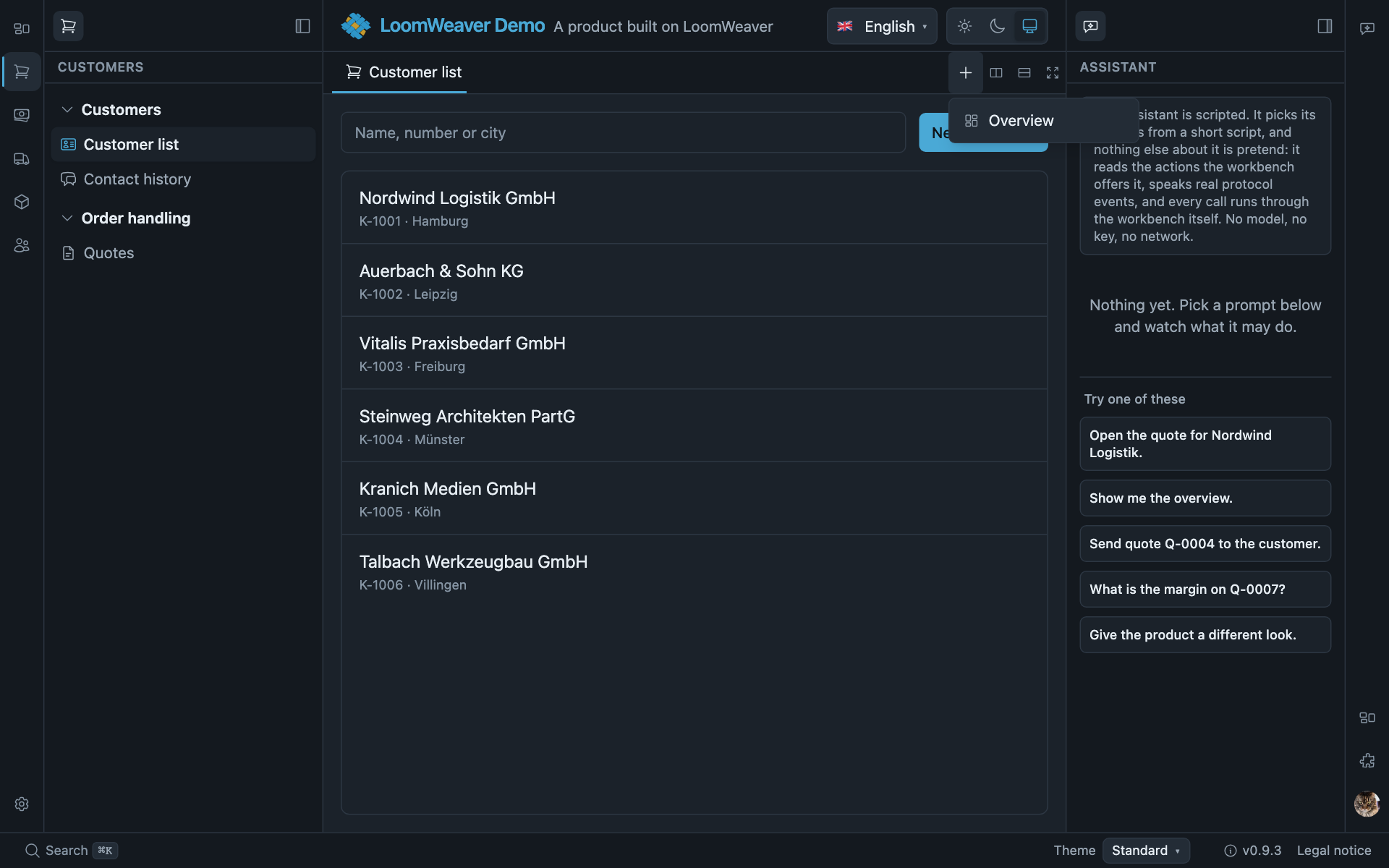
sibling on a tab strip: the New tab button lists the content a pane can host, and a click opens
it there. Both lists come from the routes and surfaces plugins contribute. Nothing registers for
them separately.
Where it is described: The content area, Command palette entry for placing the badge that opens it.
Workspaces
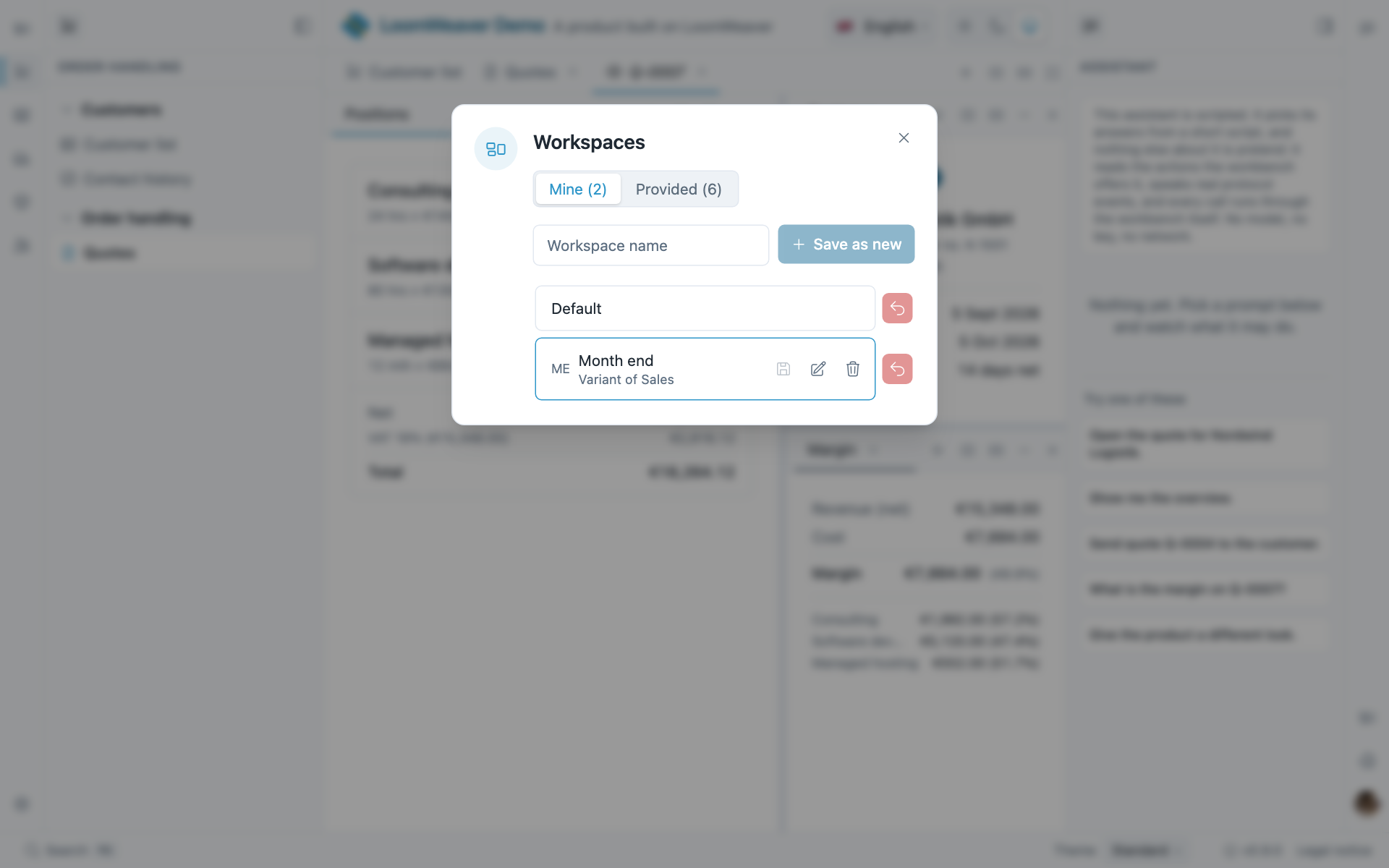
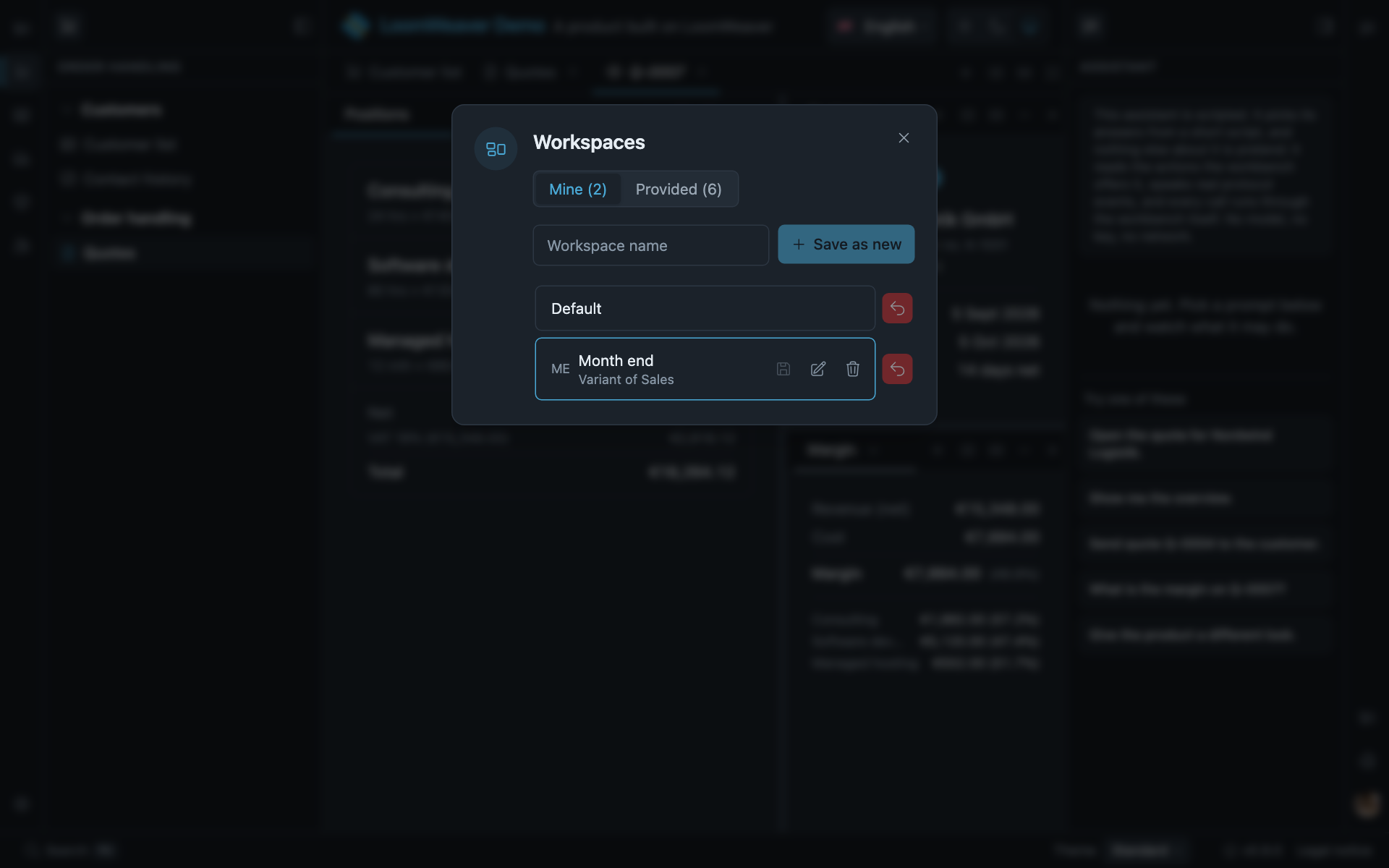
A workspace is a whole arrangement: which sidebars are open, what is in them, which tabs are in which pane. The product provides some, the user saves others, and the dialog keeps the two lists apart. Save as new, rename, delete and reset to the baseline are already here. A saved workspace remembers what it was derived from, which is what Variant of Sales says.
Where it is described: Workspaces, Declaring workspaces.
The rail and the sidebars, curated
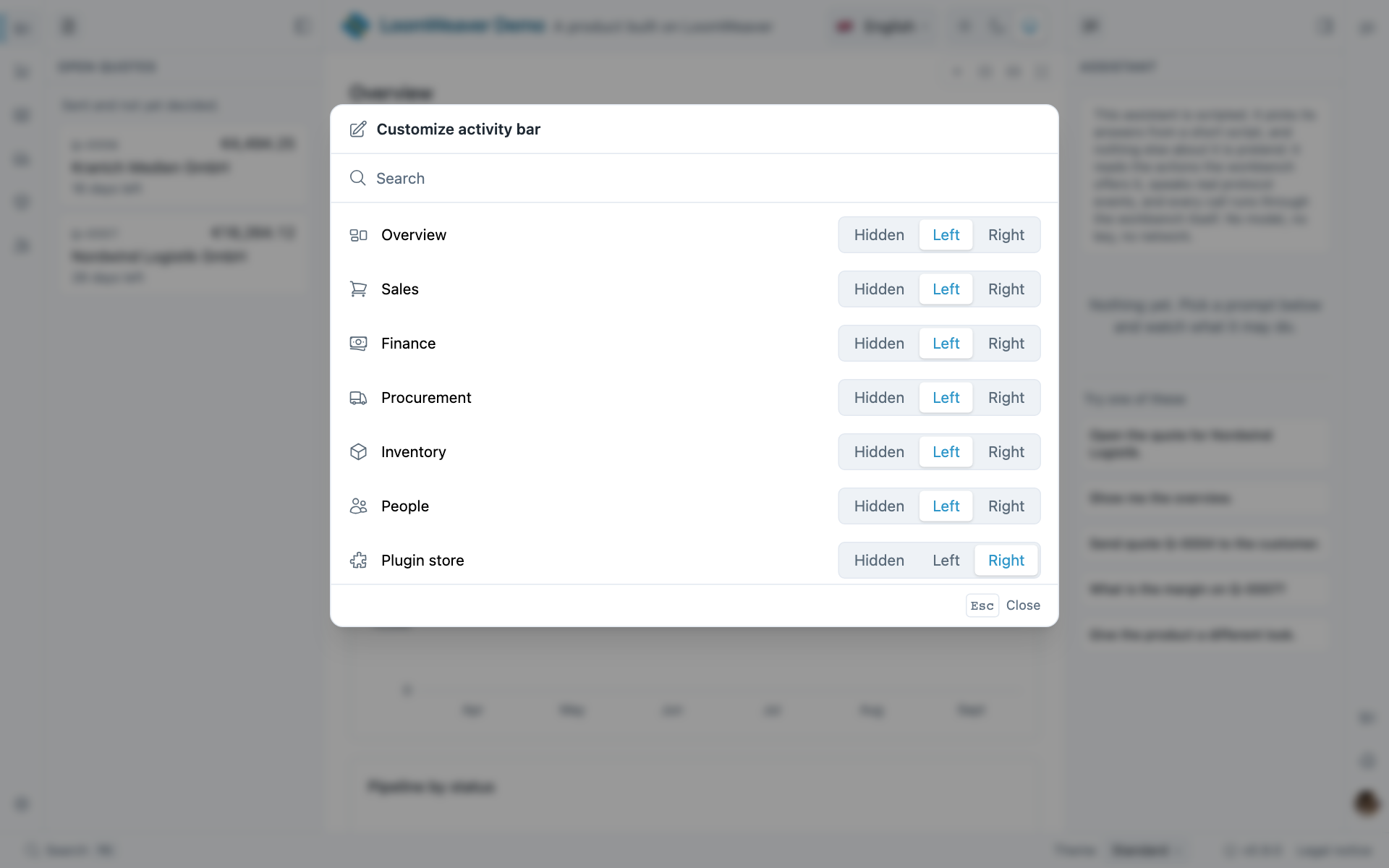
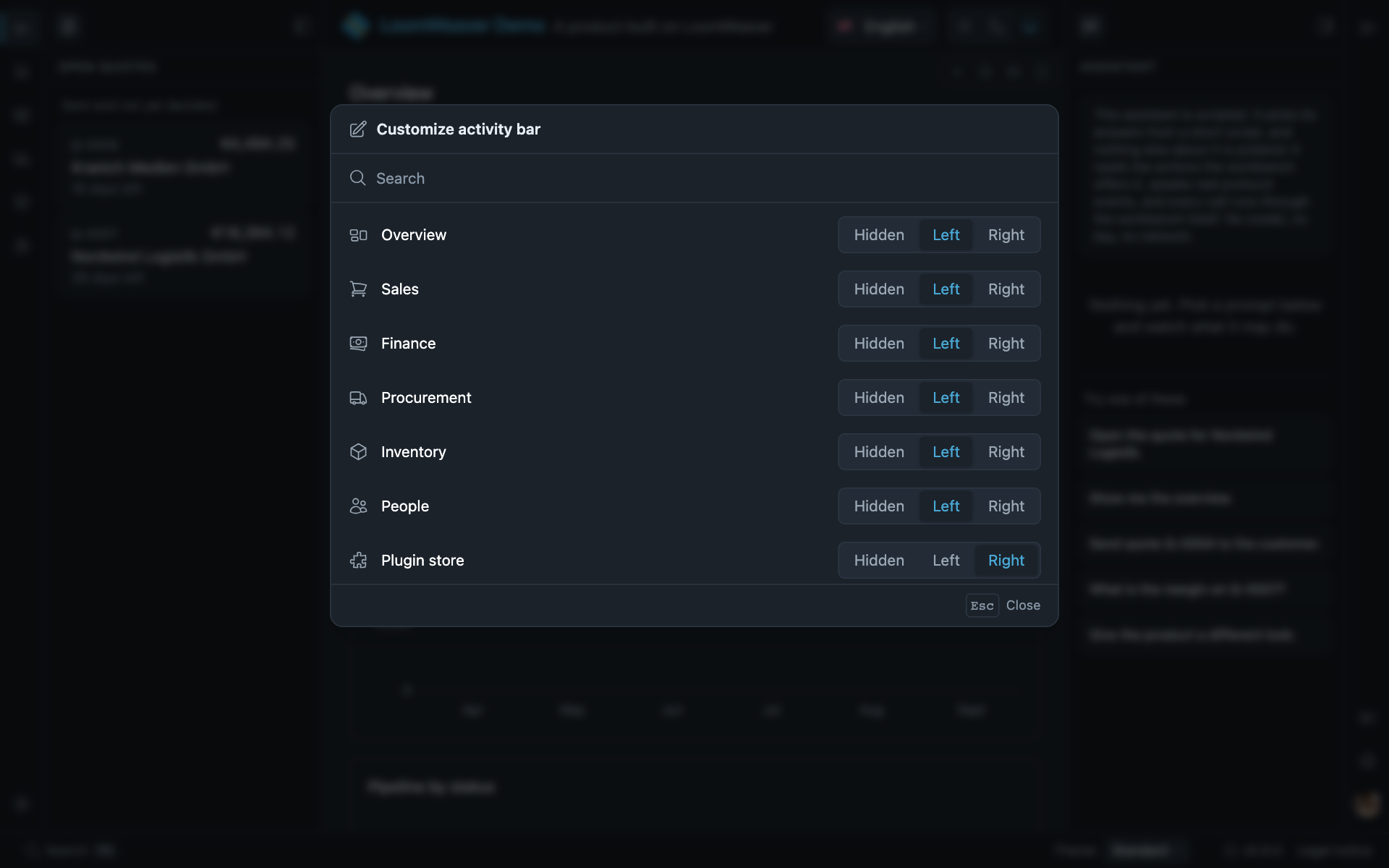
A right-click on the rail’s empty part offers Customize activity bar, and this dialog opens: every entry, and whether it sits hidden, left or right. The same dialog exists for the views of a sidebar under Customize views. These pages say rail; the workbench’s own menus say Activity bar, and the glossary keeps the two together. Whatever the user arranges here is part of the workspace, so it survives a reload and a sign-in.
Where it is described: Curating the rail, Curating a sidebar.
Context menus
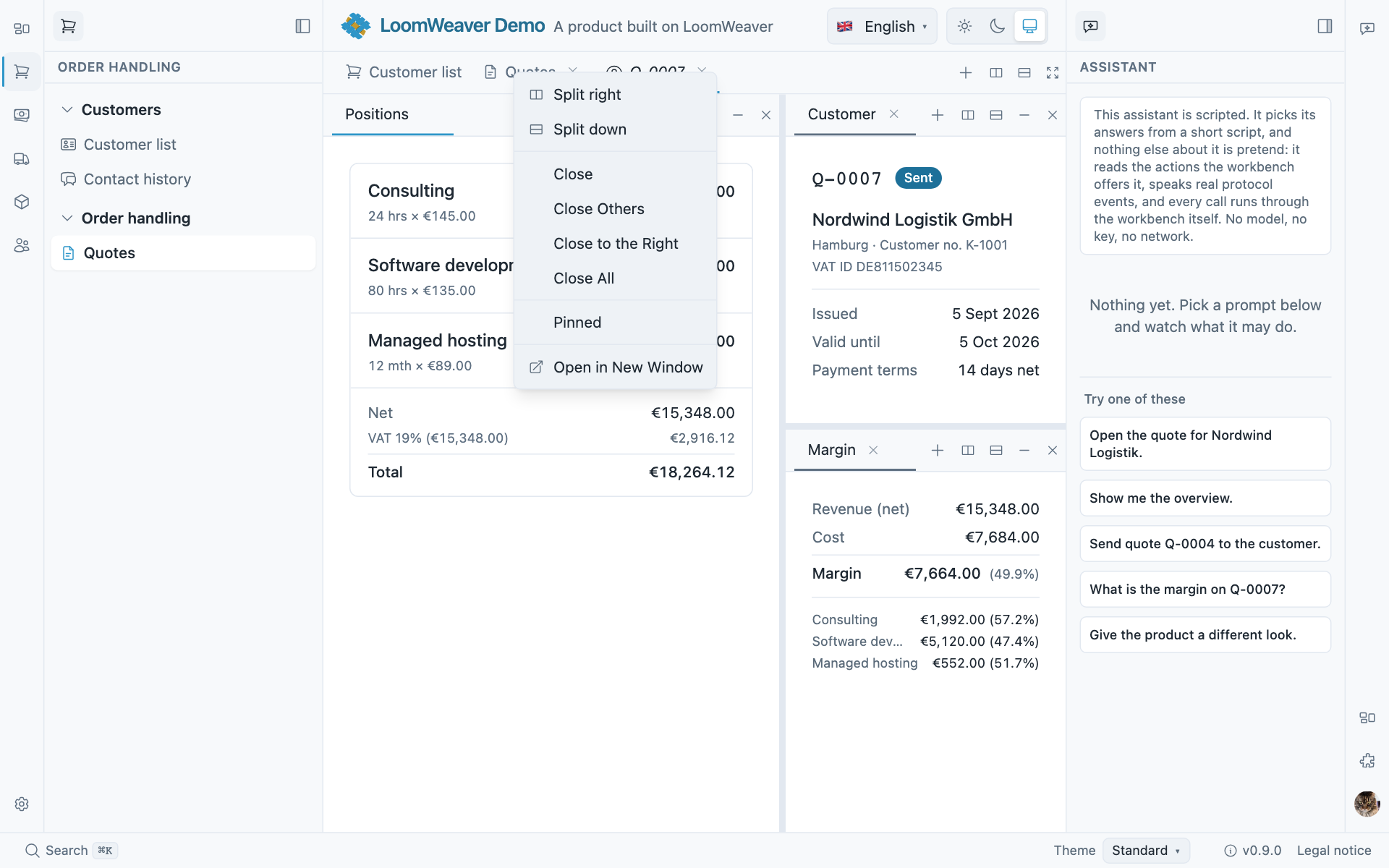
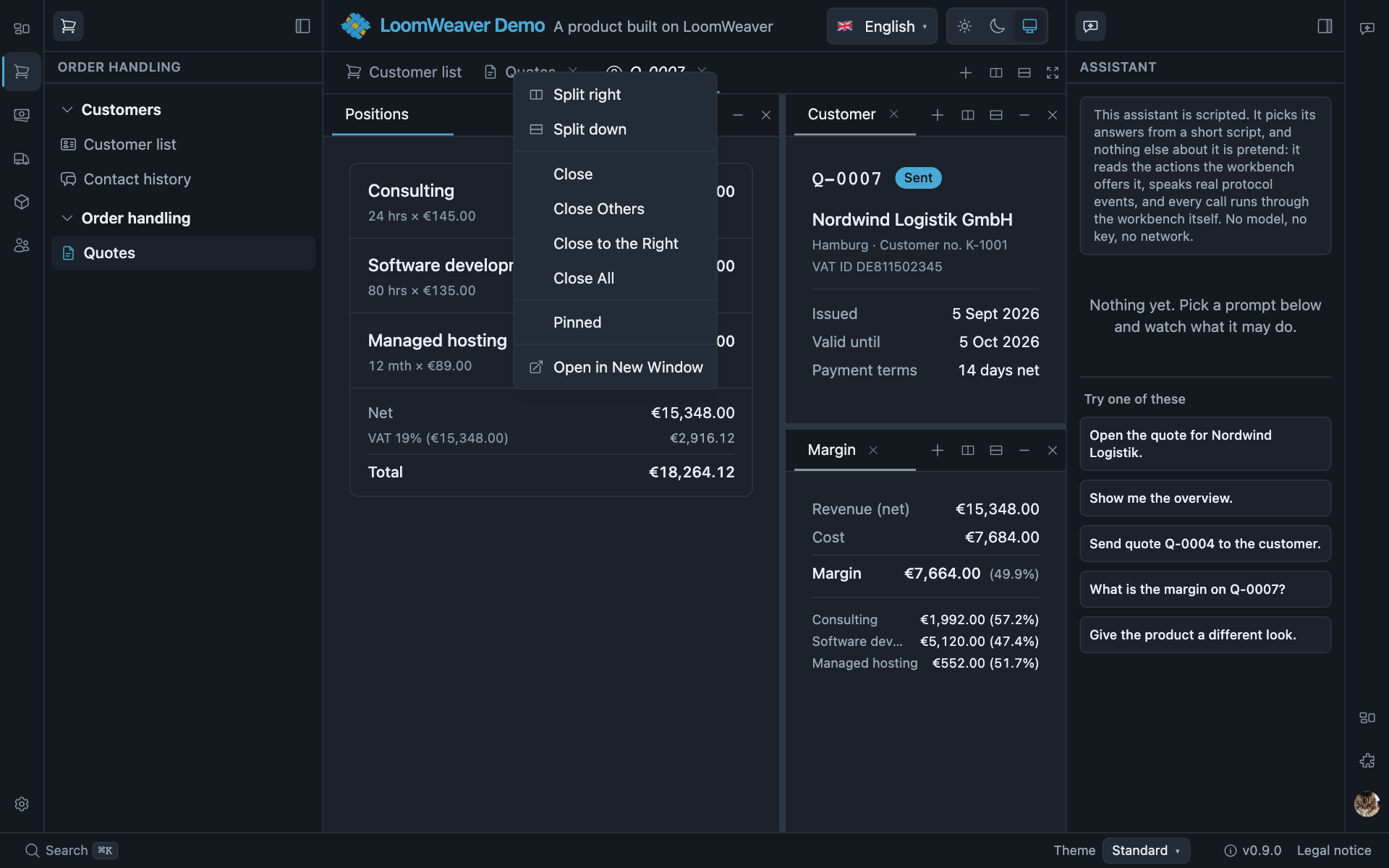
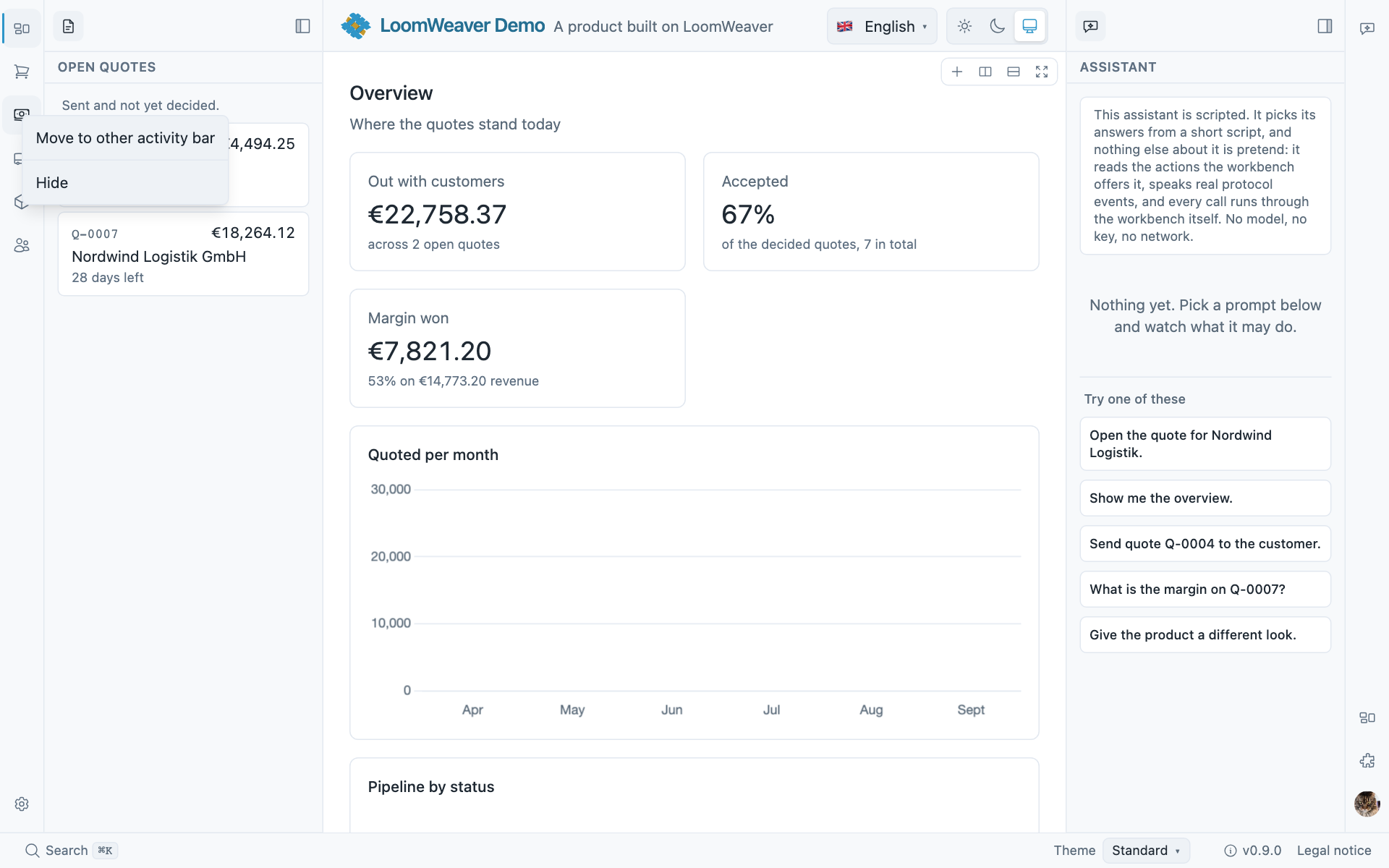
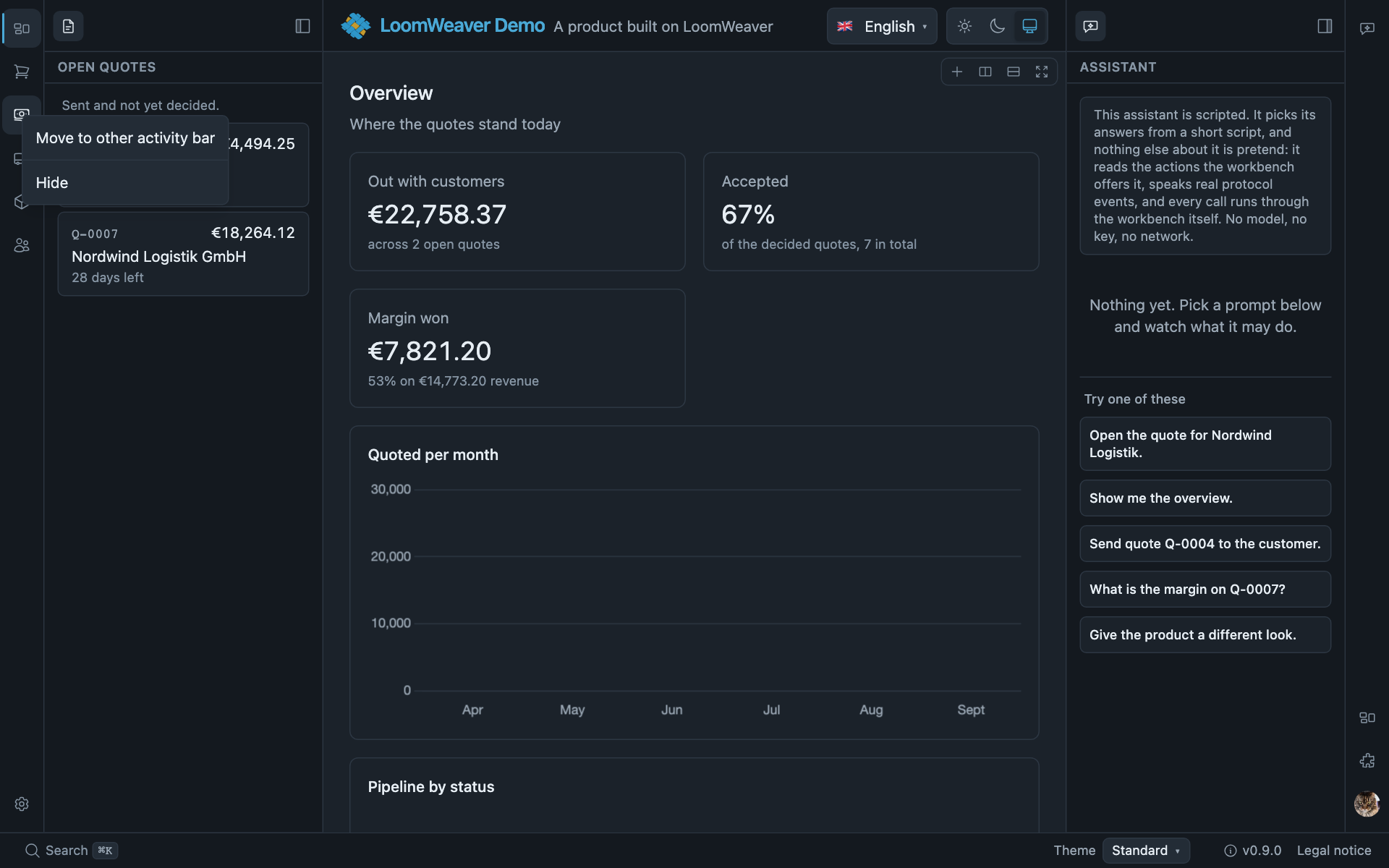
The shell draws its own menus on a tab, on a sidebar view, on a rail entry, and on the empty parts of the rail and the sidebar strip. Entries a plugin contributes go into these same menus, beside the shell’s. An entry naming a command the session may not run, or one that does not belong in a window of its own, is not drawn. Where nobody draws a menu, the browser’s own stays.
Where it is described: Menus, Sorting and moving.
Closing asks, when there is something to lose
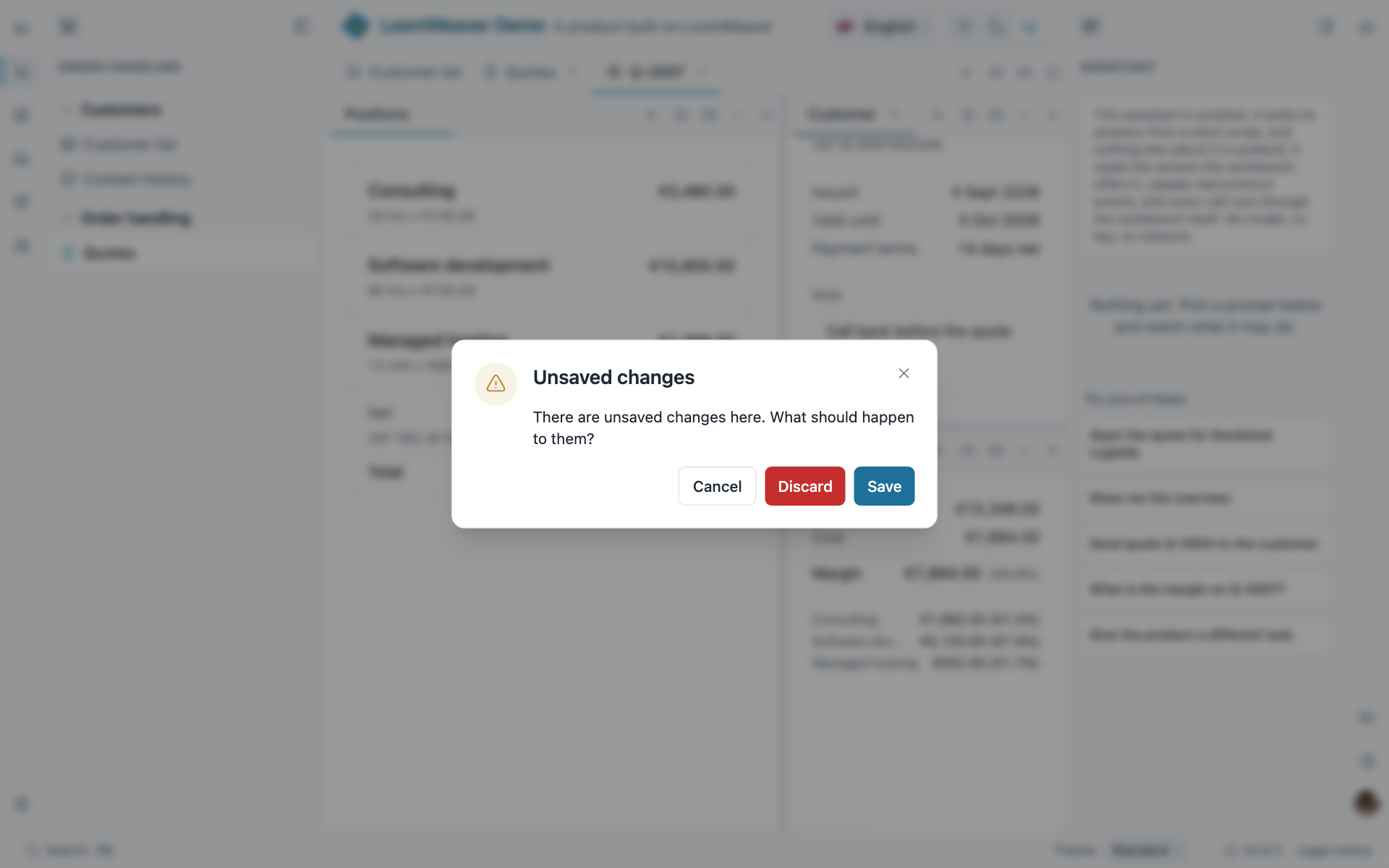
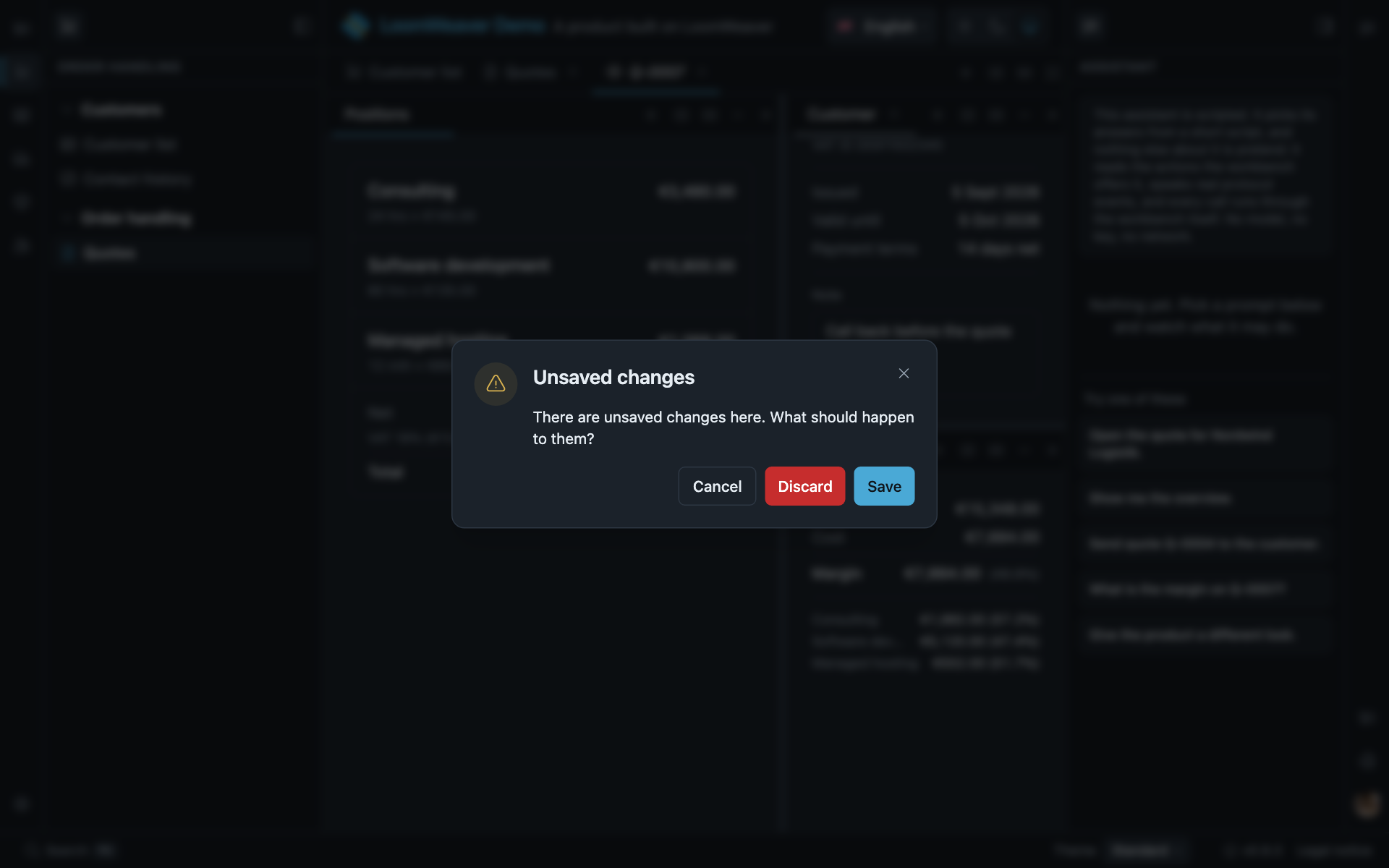
A tab whose work is unsaved says so before anything asks: it is drawn differently from a saved one, its name says it too, and a document is marked when a panel inside it is the one holding the work. A mark sits on its trailing edge, in a colour of its own, sharing that place with the close control. The control appears when the pointer reaches that place rather than anywhere on the tab, so switching to a tab never hides its mark. A surface that reports unsaved work is never destroyed while it is hidden, and closing it asks first. The surface reports one thing, that it is dirty; the prompt, the three answers and the wording are the shell’s, so every plugin in the product asks the same question. Save appears only when the surface can save, and a save that fails keeps the work and the tab.
Where it is described: Retention and unsaved work, Unsaved changes for the plugin’s side of it.
Settings and permissions
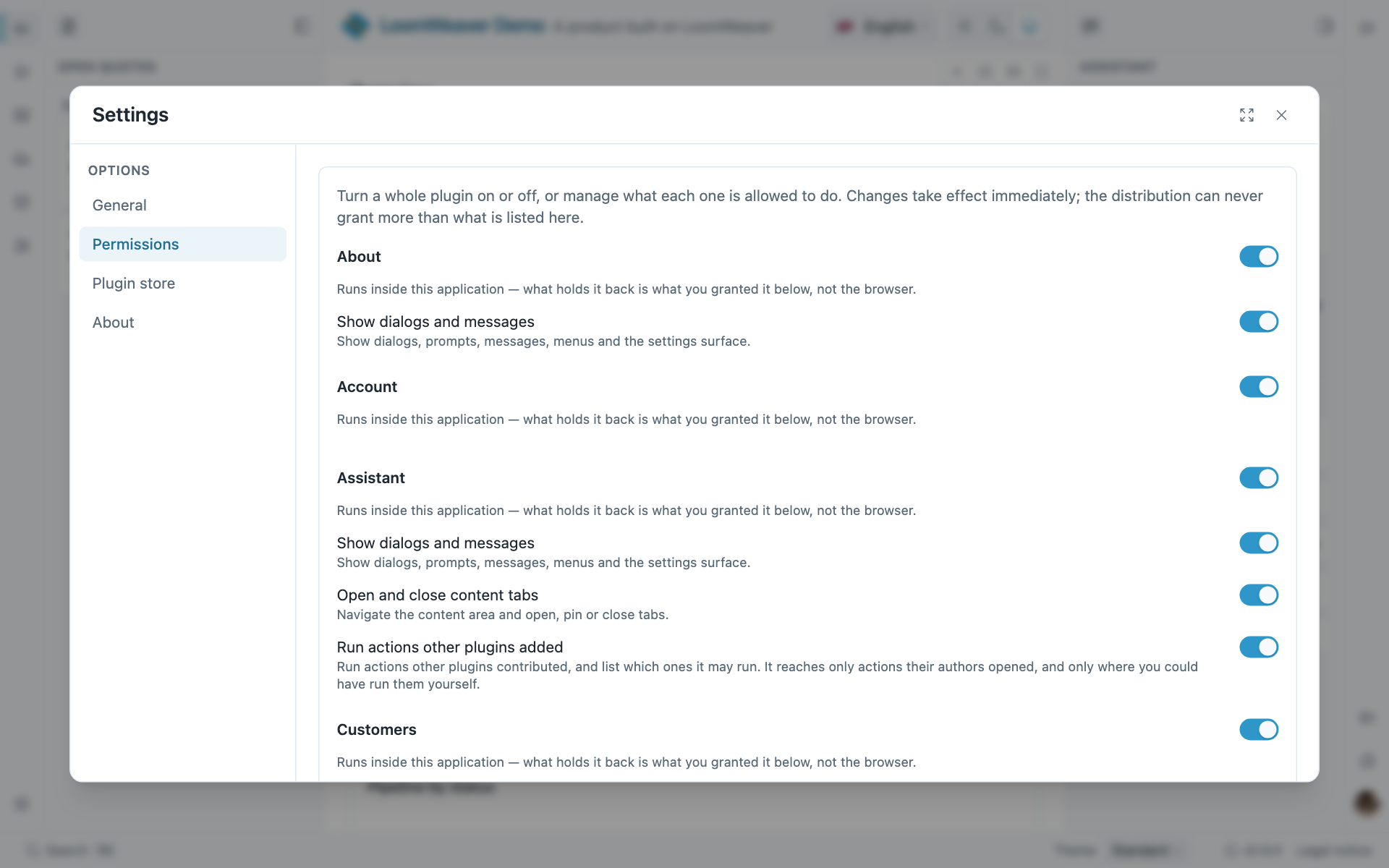
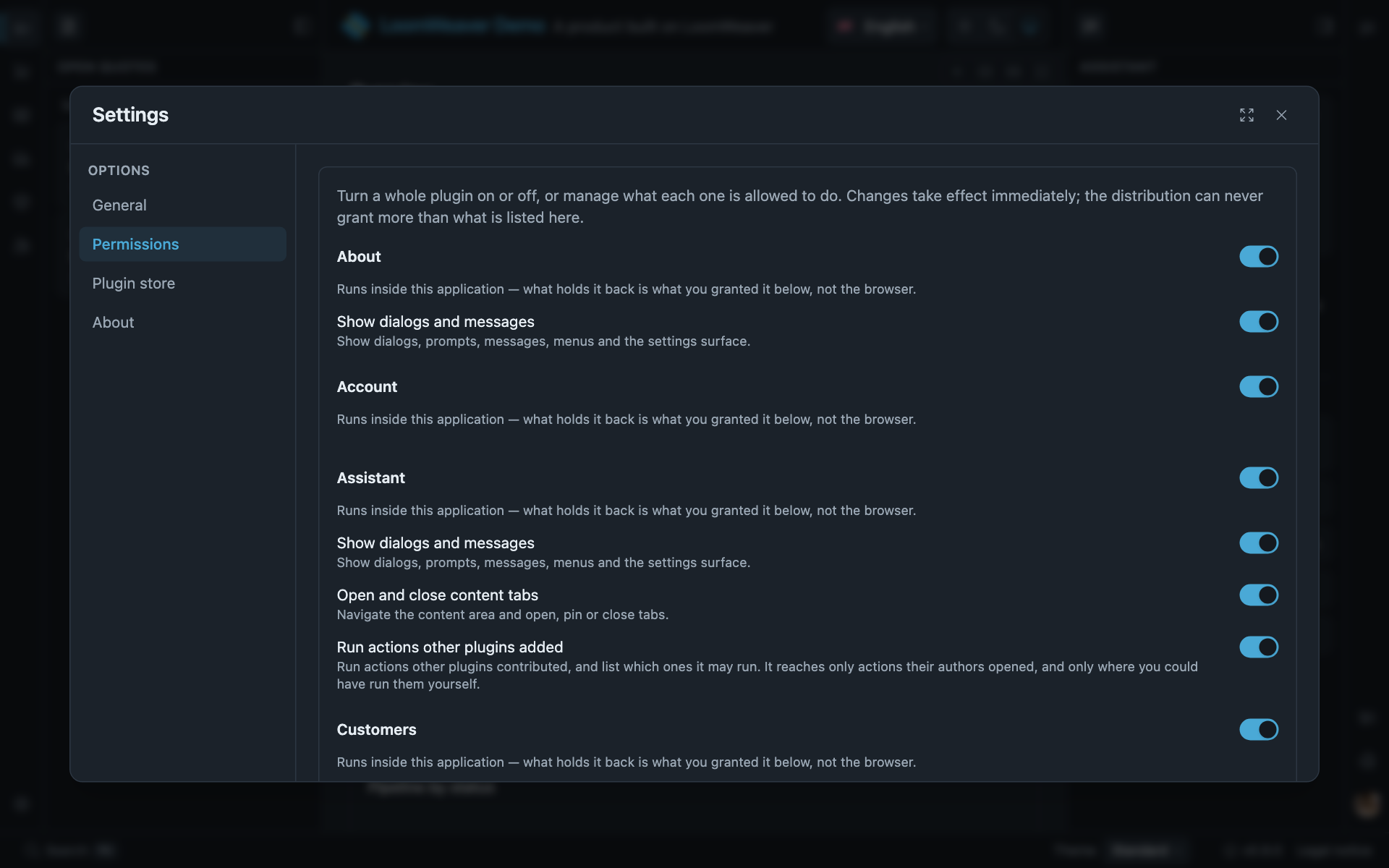
One dialog for the product, with a section per plugin that wants one and the shell’s own sections beside them. The Permissions section is the shell’s: a switch turns a whole plugin off, and under it a switch per capability takes one thing away from it, effective at once. The dialog, its navigation and that section come with the shell; a plugin registers a section and the shell paints it.
Where it is described: Settings sections, The Permissions section.
The plugin store
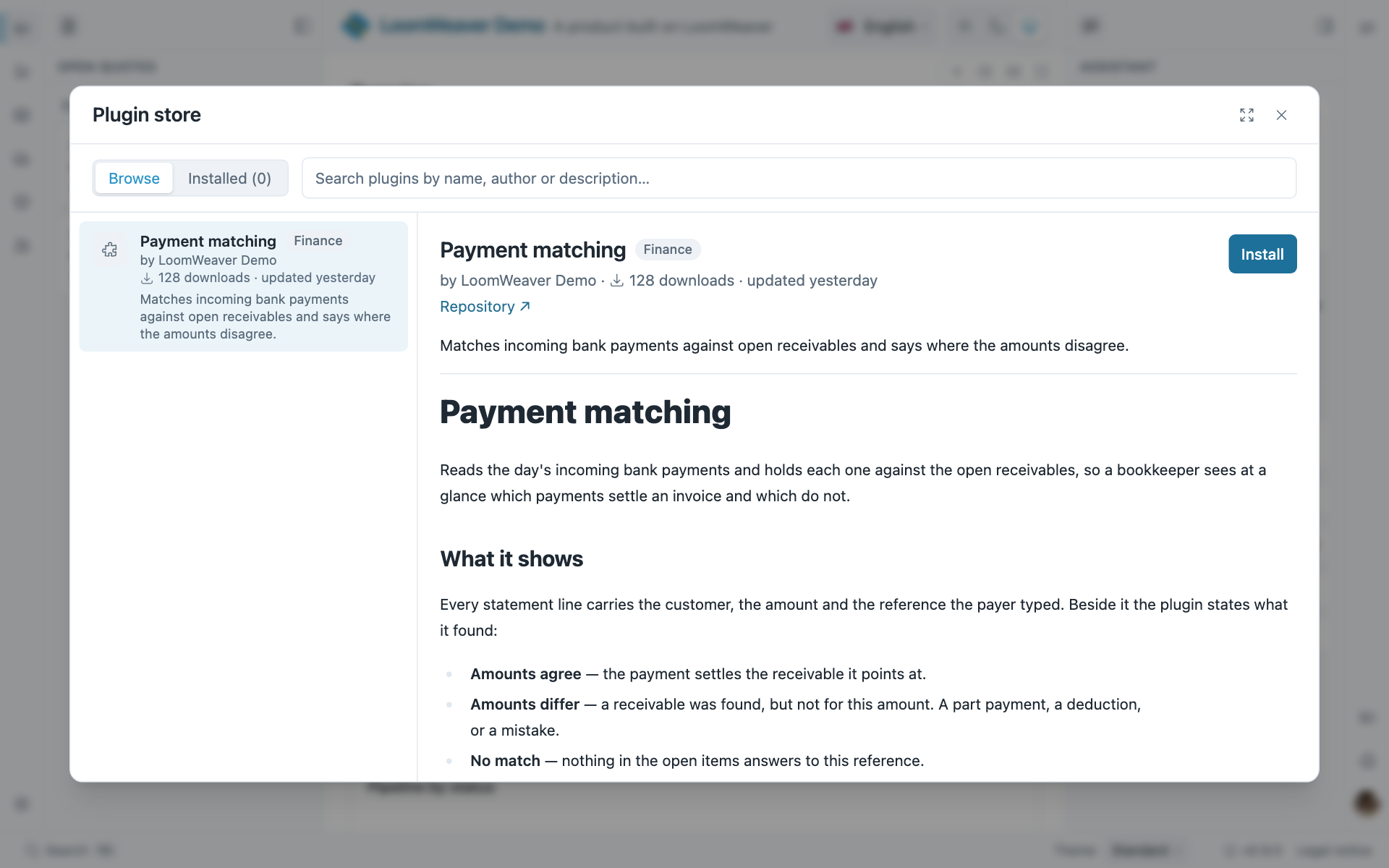
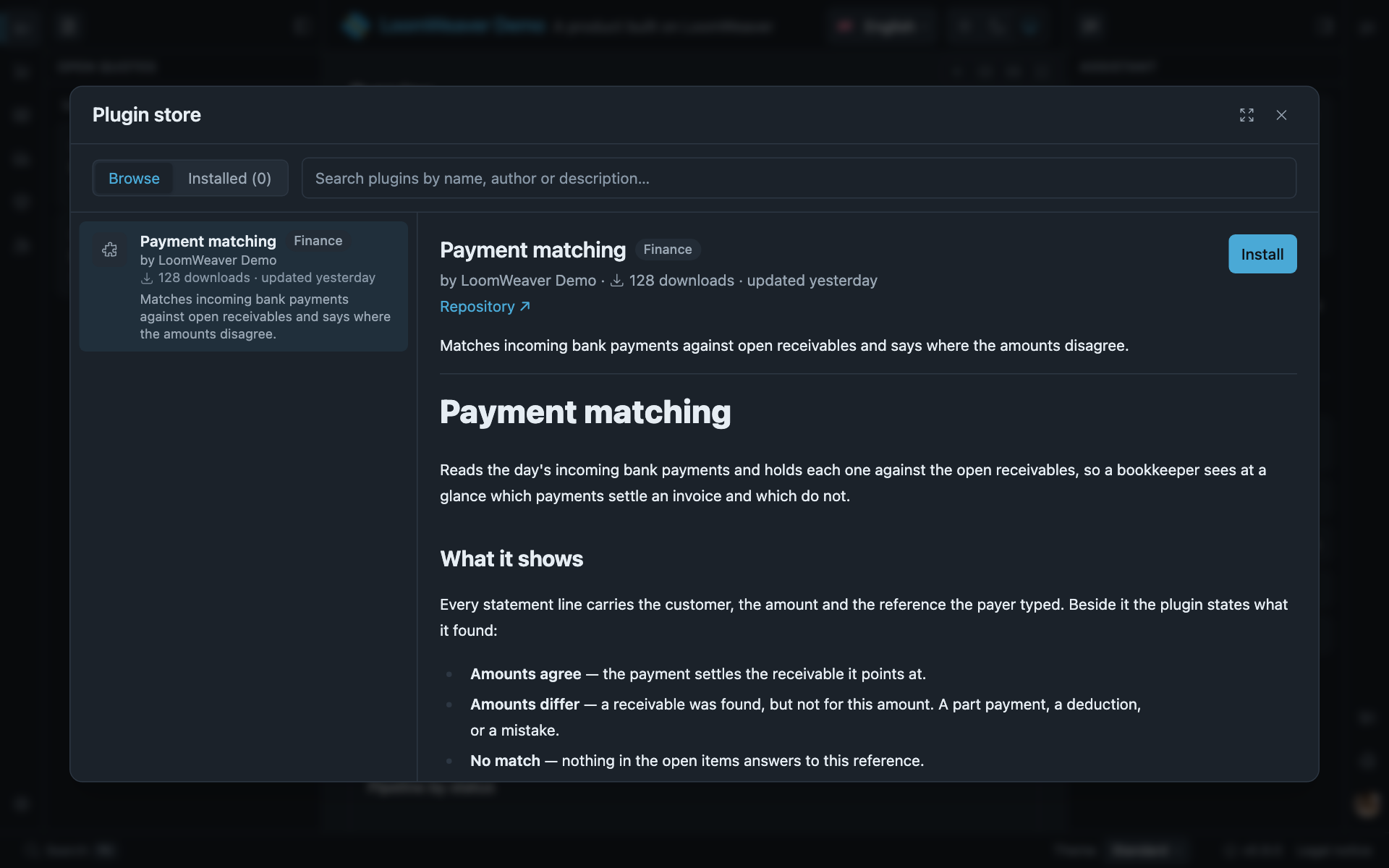
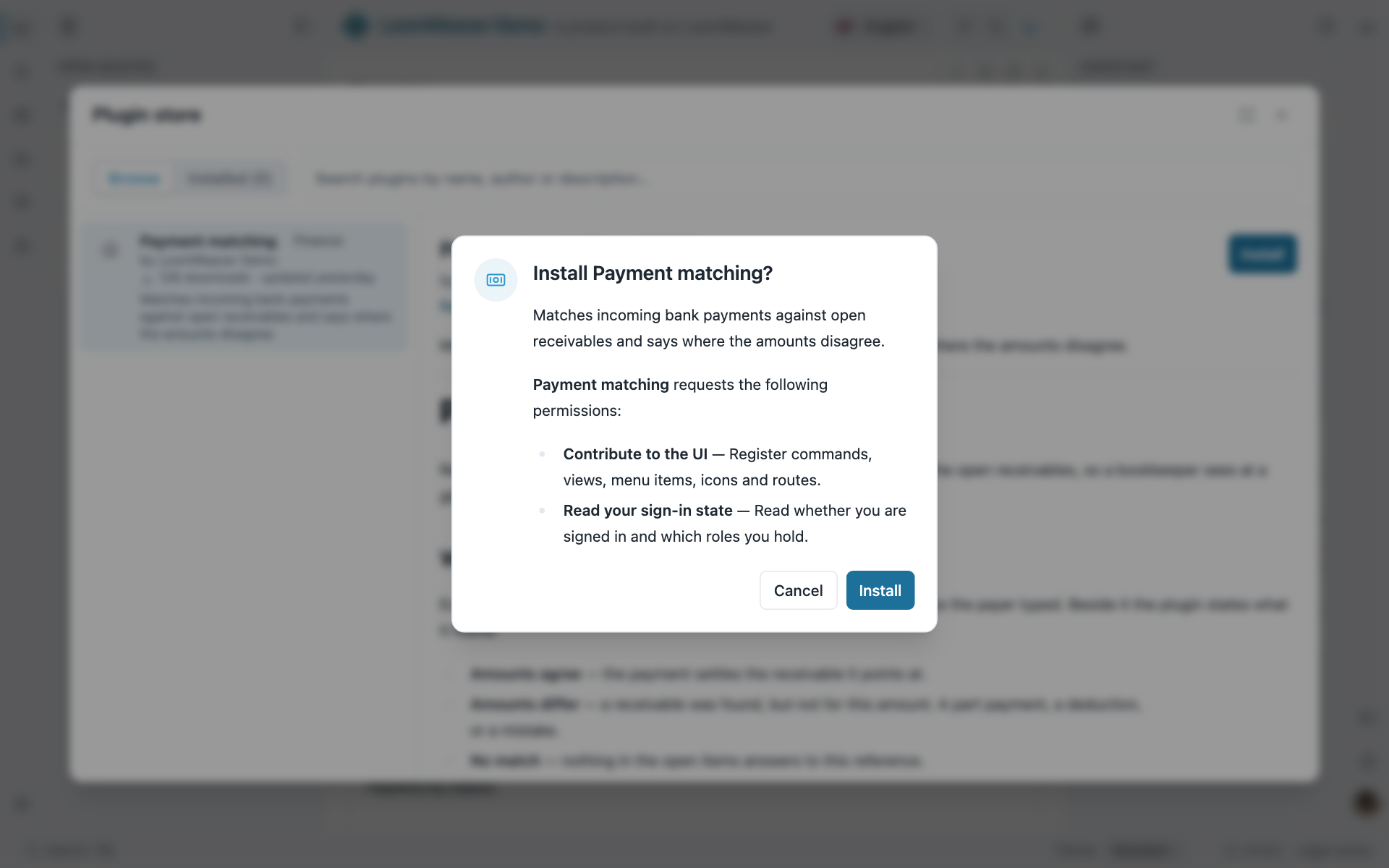
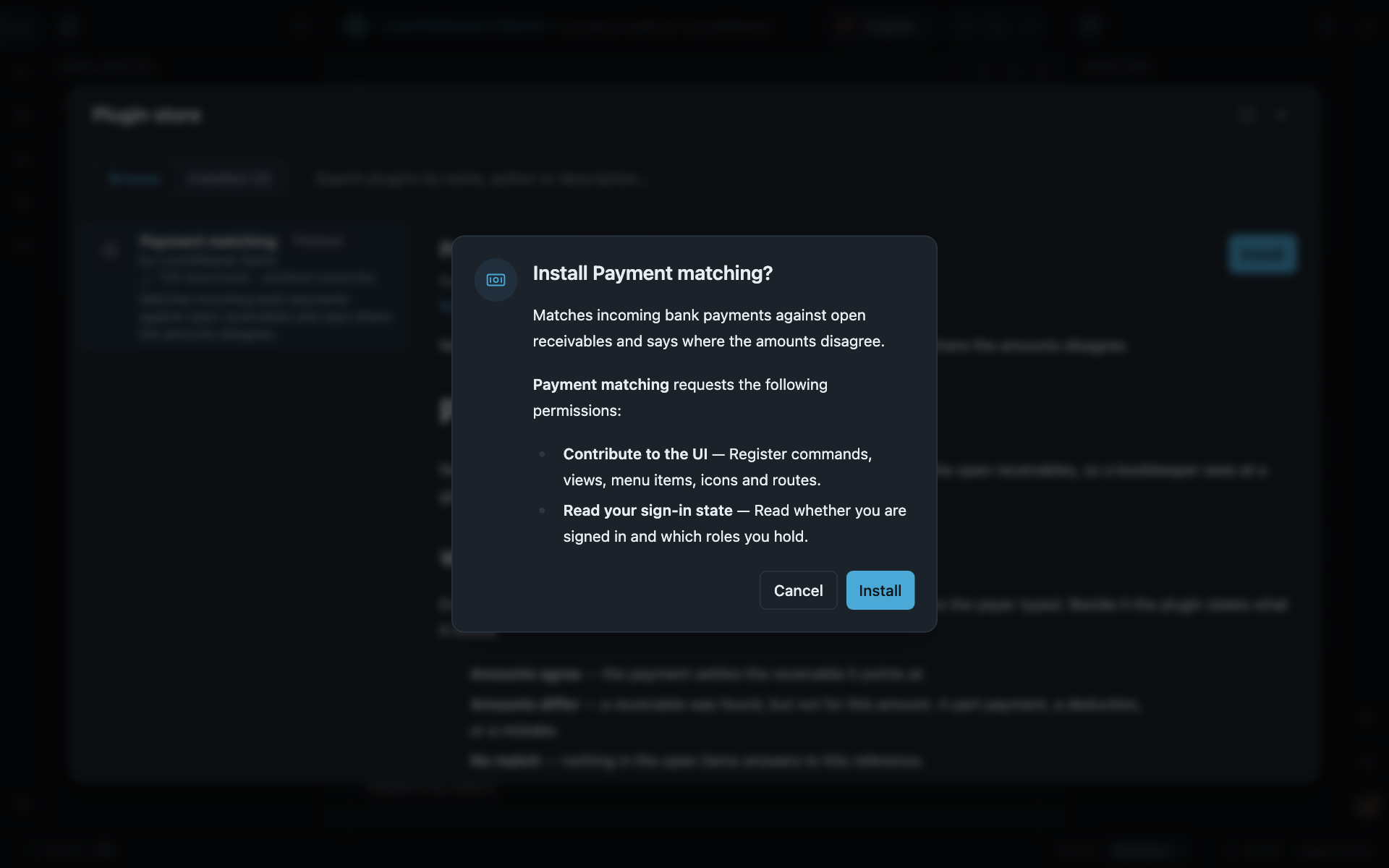
A distribution serves a catalogue, and the user gets this. Cards, a search, a detail page from the plugin’s own readme, an installed list, and an update path driven by the catalogue’s version. Before anything is installed, the prompt lists every capability the plugin asked for, and the user answers once. The plugin then runs in a sandboxed frame with exactly what was granted. The catalogue is the product’s; the surface is not the product’s work.
Where it is described: Plugin store, The plugin system.
An agent at the keyboard
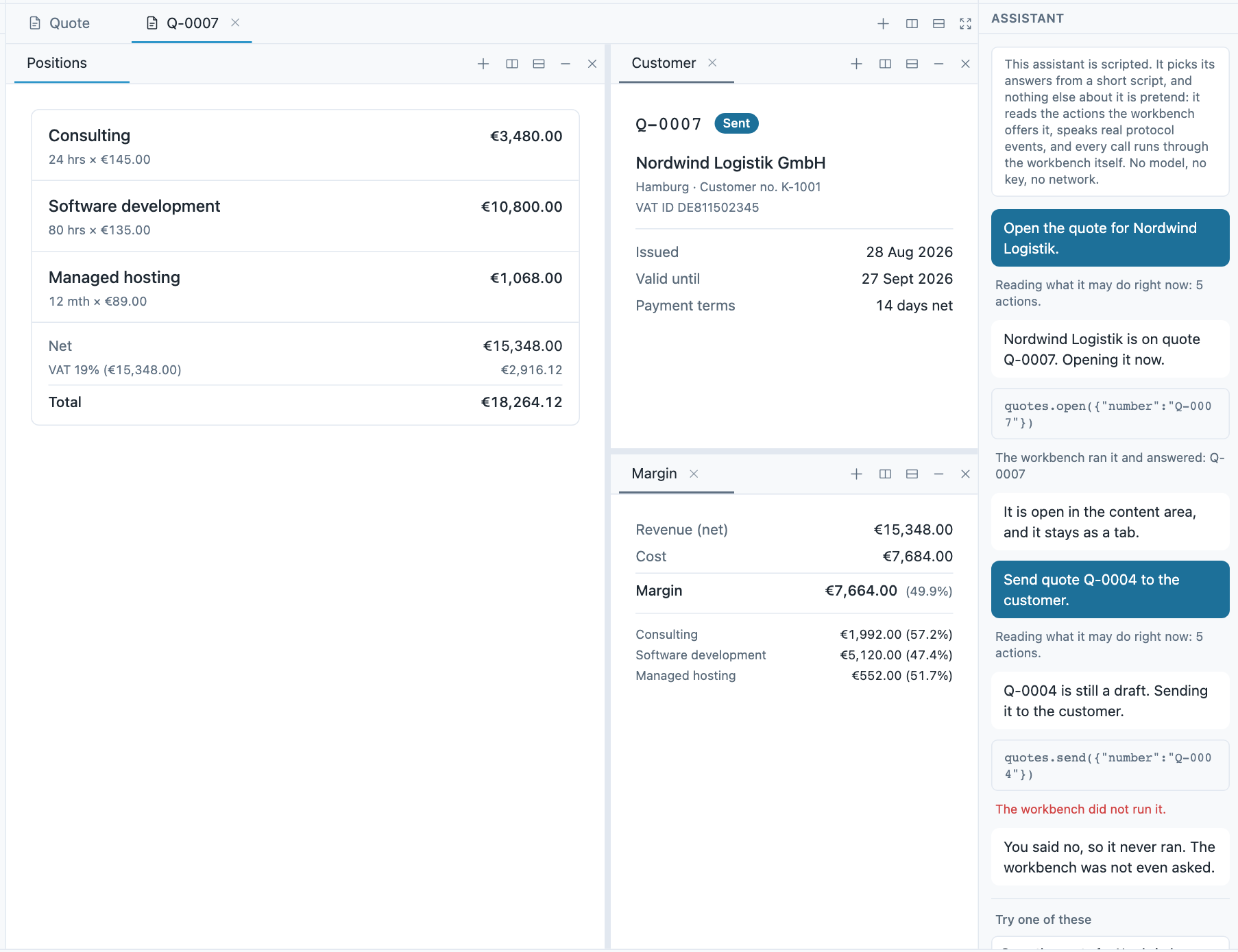
Every command in the palette can be offered to an agent that speaks AG-UI, through an adapter that ships with the platform. The panel in the picture is the demo’s; the calls going through it reach the same commands the palette does, under the same gating, so the agent cannot reach further than the person at the keyboard.
Where it is described: Driving your product with an AG-UI agent, Agent tools.
What else comes along
Some of what a user meets has no picture here, because it is small on screen or lives in a second window. All of it is the shell’s:
- Pop-out windows. A tab or a sidebar view opens in a window of its own, and state stays in sync across every window and tab of the product. Windows and sync.
- Light, dark and system, a language switch, and four text sizes, in the top bar and in the settings dialog. Appearance, Translations.
- Toasts for what a plugin or the product wants to say, coloured by kind, leaving by themselves unless they report a failure, and never more than three at once. An update badge turns into Reload to update when a new build is ready. Dialogs and toasts, PWA.
- Access-aware chrome. A contribution that needs a sign-in or a role is hidden, disabled or blocked as the session changes, in the rail, the menus, the palette and the tab picker alike. Access gating.
Keyboard shortcuts
The shell binds these itself. mod is ⌘ on macOS and Ctrl elsewhere, and every chord a command
declares is printed beside it in the palette and the menus.
| Keys | What happens | Where it is described |
|---|---|---|
mod+k | Opens the command palette | Command palette entry |
mod+p | Opens quick open, the search over open tabs and openable content | Command palette entry |
mod+\ | Splits the current pane to the right | Content tabs and the pane toolbar |
Alt+Arrow on a tab or rail entry | Moves it within its strip or band | Sorting and moving |
Alt+Shift+←/→ on a rail entry | Moves it to the other rail (Move to other activity bar) | Curating the rail |
Alt+Shift+←/→ on a sidebar view | Moves it to the other sidebar | Curating a sidebar |
Arrow on a focused split handle | Resizes the split; with Shift, in larger steps | Panes and splits |
Esc | Closes the open dialog, menu or palette | Dialogs and toasts |
A distribution that switches a capability off takes its chord with it, so no menu entry or badge advertises a key that does nothing.
Where next
- Getting started: a product of your own, with all of the above, in five minutes.
- Switching capabilities off: every one of these behaviours as a switch, with its default.
- Distribution API: everything a user does by hand here, your code can do too.